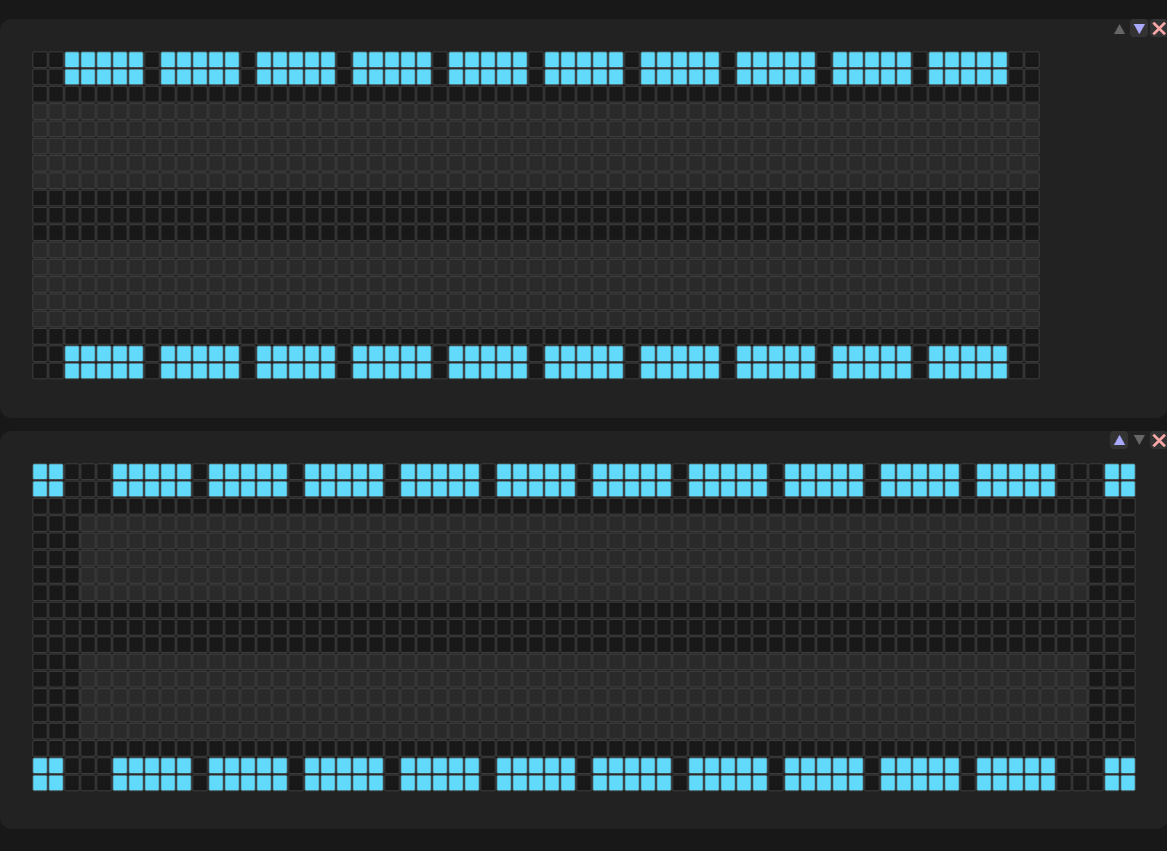
While waiting for my Microrack modules to arrive, I found myself a bit unsure about how many breadboards I’d actually need to install all the modules I’m planning to use.
So, I ended up creating a tool: a patchbook application that lets you place modules on virtual breadboards, place cables, rotate knobs, turn switches, and save or load your setups as JSON files — basically saving your patches for future reference.
Maybe some of you will find it useful too. At the very least, it helped me realize I had underestimated the number of breadboards I’d need in my case.
A few things to know before investing too much time into it:
Devloping frontend apps like this - is well outside my usual area of expertise, so I can’t promise a polished, production-level experience.
I don’t have the production Microrack modules in hand yet. I did my best to guess the configurations based on the images and metadata available on the Microrack website. Some of those images are already known to be outdated. Once I receive the modules (and if information about modules would be updated on the forum or website), I plan to update the tool — which means that pin/controls names and amounts may change. This will might (and probably will) break compatibility with any older saved patches.
I’ve reached out to the Microrack team with some questions, and from what I understand, they’re planning to develop an official version of a similar tool down the road — but only after the more important work of getting our kits shipped is done. So this tool of mine is likely to become obsolete later.
Hope you might have some fun with the virtual breadboards, while waiting for the kits.
To add a module, grab it and drag and drop it from the module browser to the breadboard. To delete a module, drag it back to the module browser.
Creating a cable is as simple as dragging one pin to another. The cable color is random. To roll a new random color, grab one end of the cable and reconnect it to the pin. To delete a cable, grab one of the ends and drop it somewhere outside the pin.
Knobs can be rotated, and switches can be turned on and off. Their states, as well as cables, modules and breadboards are also included into export-import.
There is a pseudo-module called a “signal splitter.” It represents the idea of being able to split the signal using unused hole columns on the breadboard. It can be placed anywhere on unoccupied space on the breadboard, including the gaps between power bus clusters where regular modules cannot go. (In reality, in physical world, this would require a different type of cable—with a female connector on one end for the module, and a male on the other for the breadboard.) In case if you do not know how breadboards work - upper part of the column (red pins in the pseudo module) and lower part of the column (blue pins in the pseudo module) are separate. Within each group all pins are just electrically “shorted” internally together inside the breadboard and share the signal.
The “Assembly Guide” button generates a step-by-step text instruction for replicating the patch. It is organized linearly to be easy to follow and designed to use minimal printer ink or toner when printed for offline use.